Short Answer
If the analog stick feels too fast when it acts as a mouse in DOSBox Pure, try this tested starting point:
- Mouse Sensitivity: 20%
- Joystick Analog Deadzone: 15%
- Horizontal Mouse Sensitivity: 100%
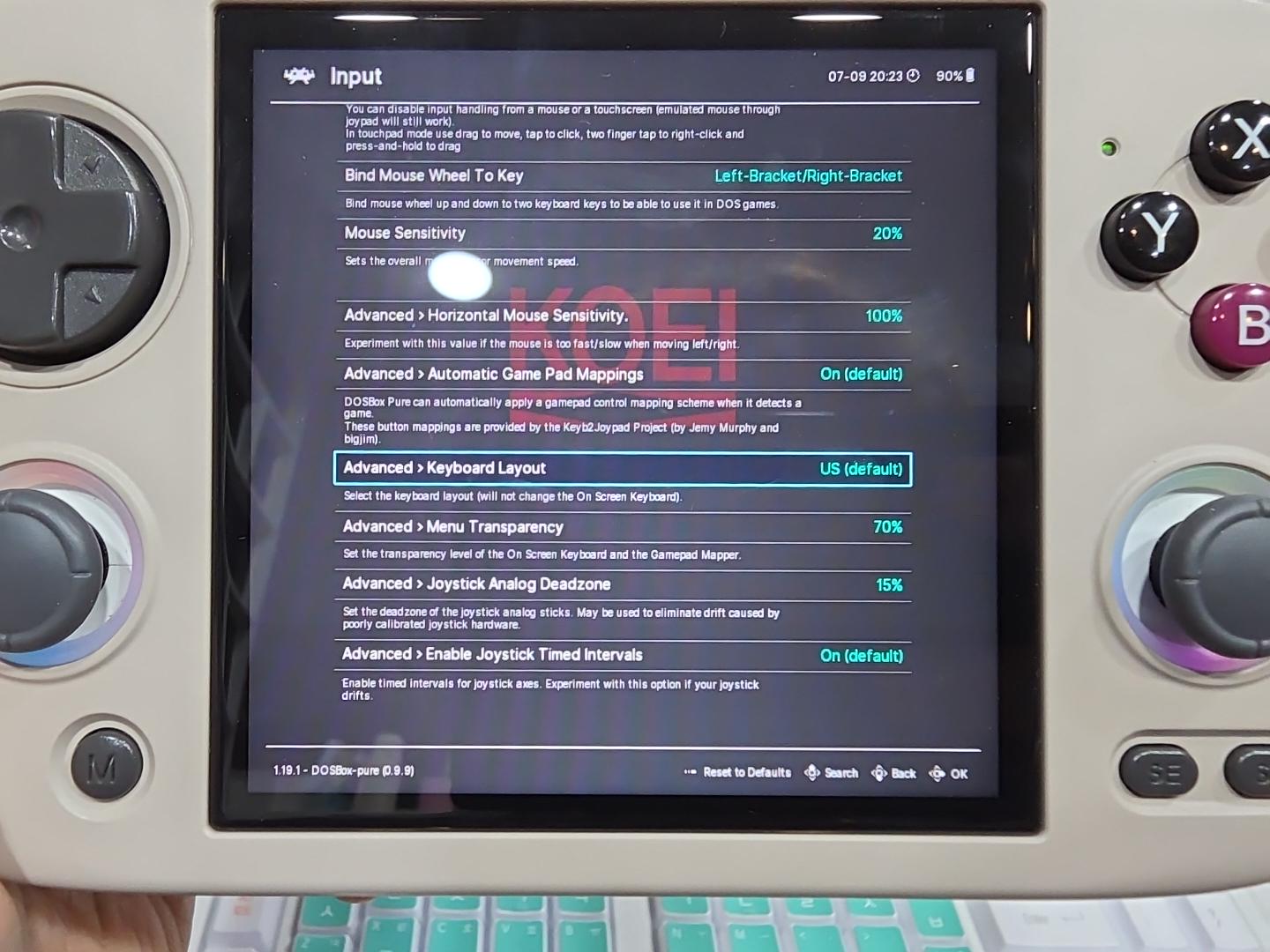
These settings made precise cursor movement significantly easier in Romance of the Three Kingdoms IV, DOS Korean version, on an Anbernic RG CubeXX running KNULLI Firefly.
Open the settings while the game is running:
M+B → Quick Menu → Core Options → Input
This is a tested starting point for the exact hardware and software versions below. It is not a universal best setting for every DOS game, controller, or KNULLI release.
Problem: The Virtual Mouse Is Too Sensitive
The analog stick was used as a virtual mouse in DOSBox Pure. In the tested game, small stick movements moved the cursor too far, making precise positioning and small buttons difficult to use.
Test Environment
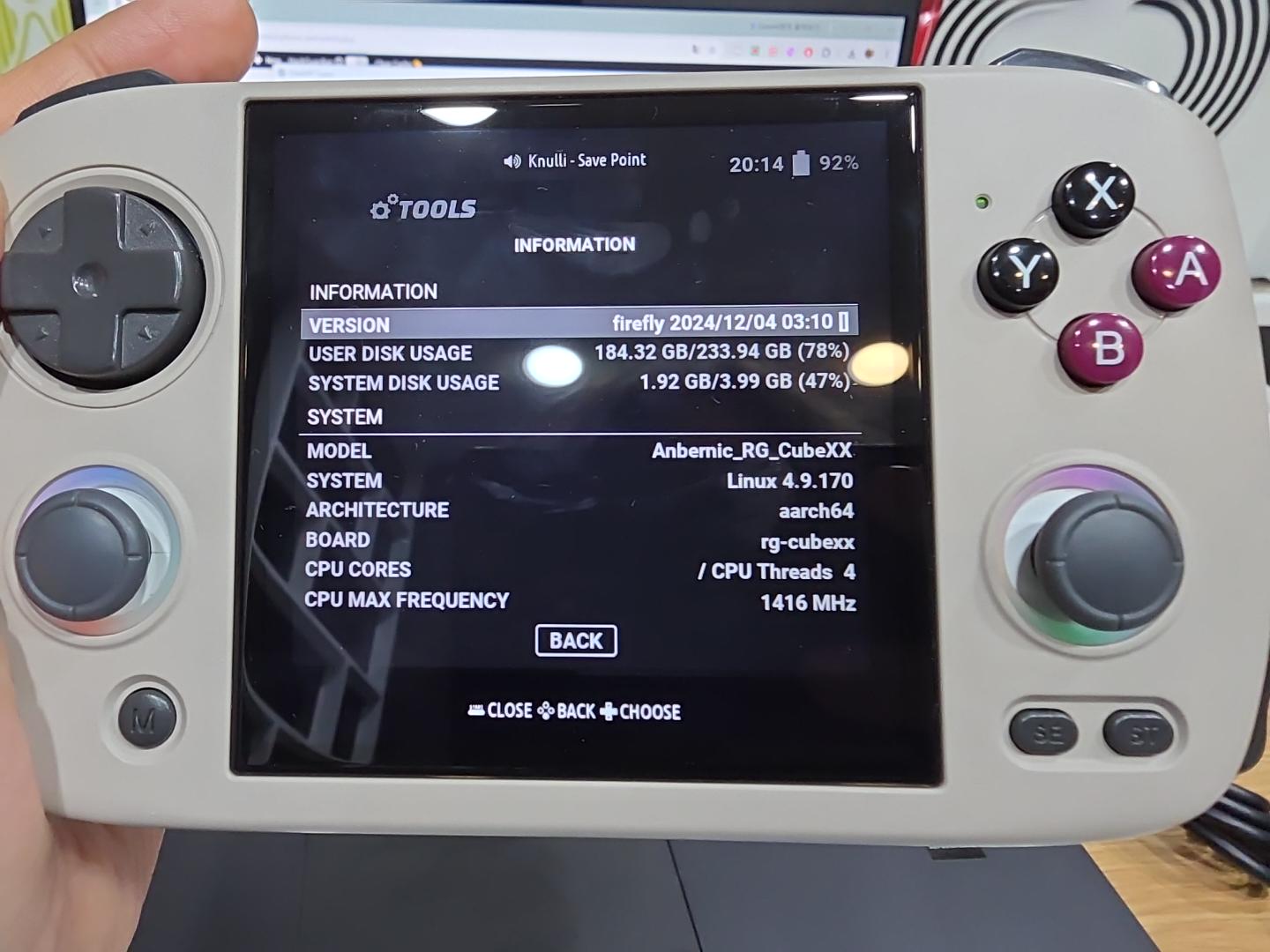
- Device: Anbernic RG CubeXX
- Board: rg-cubexx
- Architecture: ARMv8 / aarch64
- KNULLI: Firefly 2024/12/04 03:10
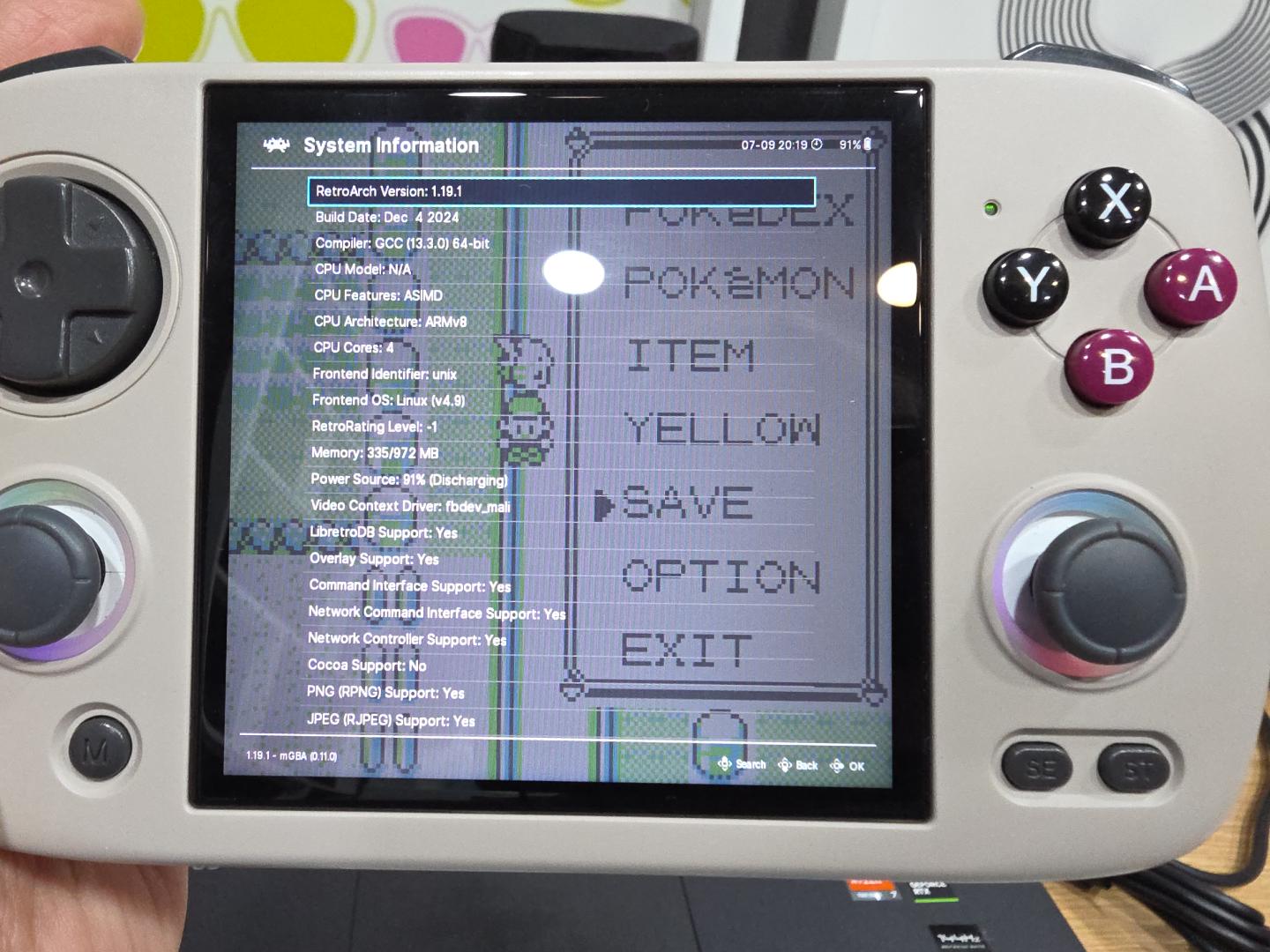
- RetroArch: 1.19.1, build date Dec 4 2024
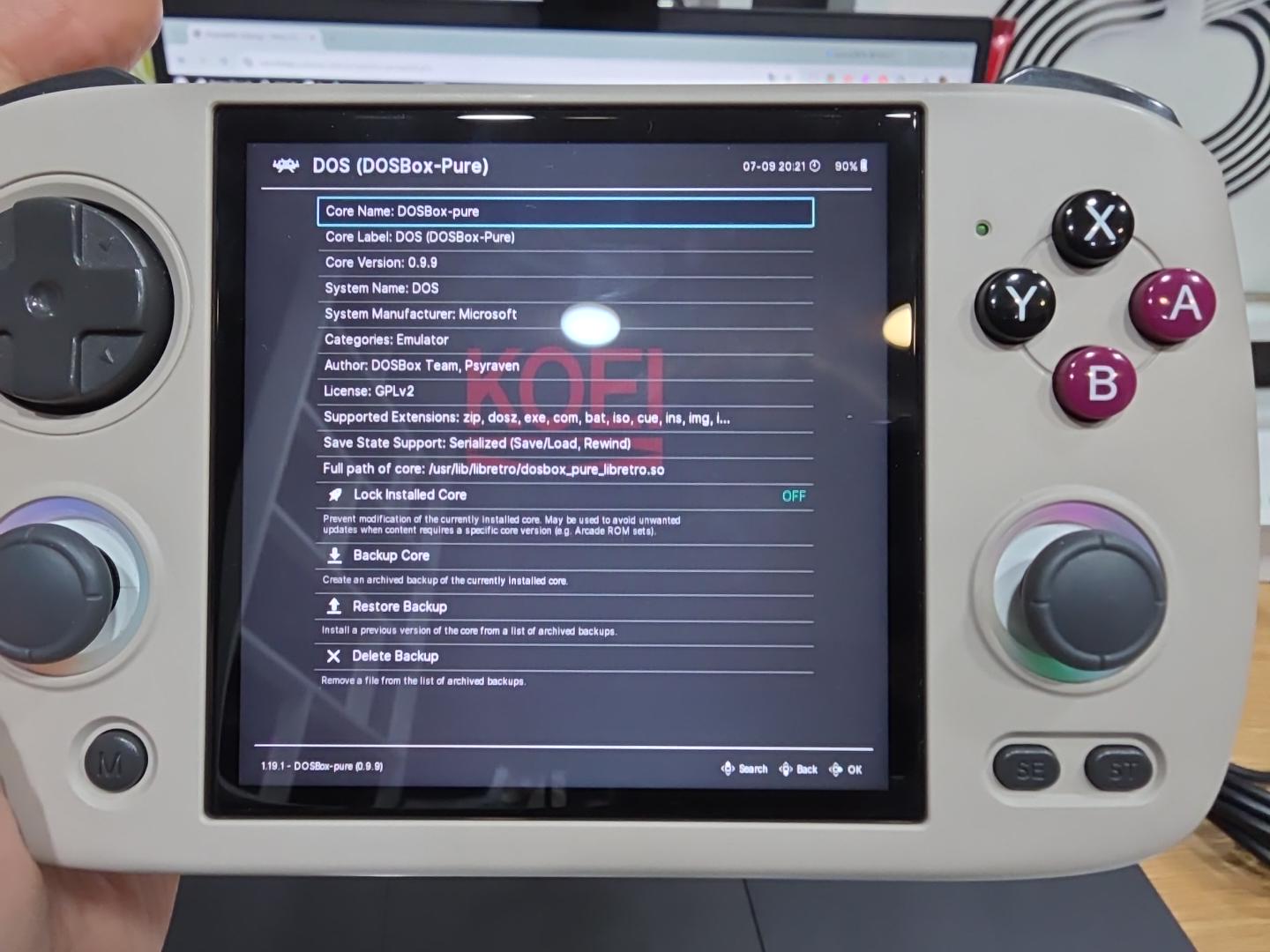
- Core: DOSBox Pure 0.9.9
- Game: Romance of the Three Kingdoms IV, DOS version, Korean version
- Input: Analog stick used as a virtual mouse
Cause: Sensitivity and Deadzone Do Different Jobs
DOSBox Pure’s Mouse Sensitivity controls virtual-mouse movement on both axes. Lowering it is the main adjustment when both horizontal and vertical cursor movement feel too fast.
Horizontal Mouse Sensitivity adds a separate adjustment to the X axis, or left-right movement. At 100%, it introduces no additional horizontal adjustment.
Joystick Analog Deadzone handles a different problem. It ignores input around the stick’s center and rescales the remaining range. This can help with drift or unintended movement near the resting position, but it is not a direct cursor-speed control.
The tested improvement was observed with the complete 20% / 15% / 100% combination. It should not be credited to deadzone alone.
Mouse Sensitivity
Use this to adjust overall virtual-mouse speed on both axes.
- Tested value: 20%
Horizontal Mouse Sensitivity
Use this only when left-right movement needs an additional adjustment relative to vertical movement.
- Tested value: 100%
At 100%, the tested setup added no extra horizontal adjustment.
Joystick Analog Deadzone
Use this to control centered stick input and drift rather than as the primary speed setting.
- Tested value: 15%
If the deadzone is too high, deliberate small stick movements may be ignored. If it is too low, drift or unintended movement may remain.
Solution: Apply the Tested Starting Point
- Launch the DOS game through KNULLI.
- Press and hold M, then press B to open the RetroArch Quick Menu.
- Select Core Options.
- Open Input.
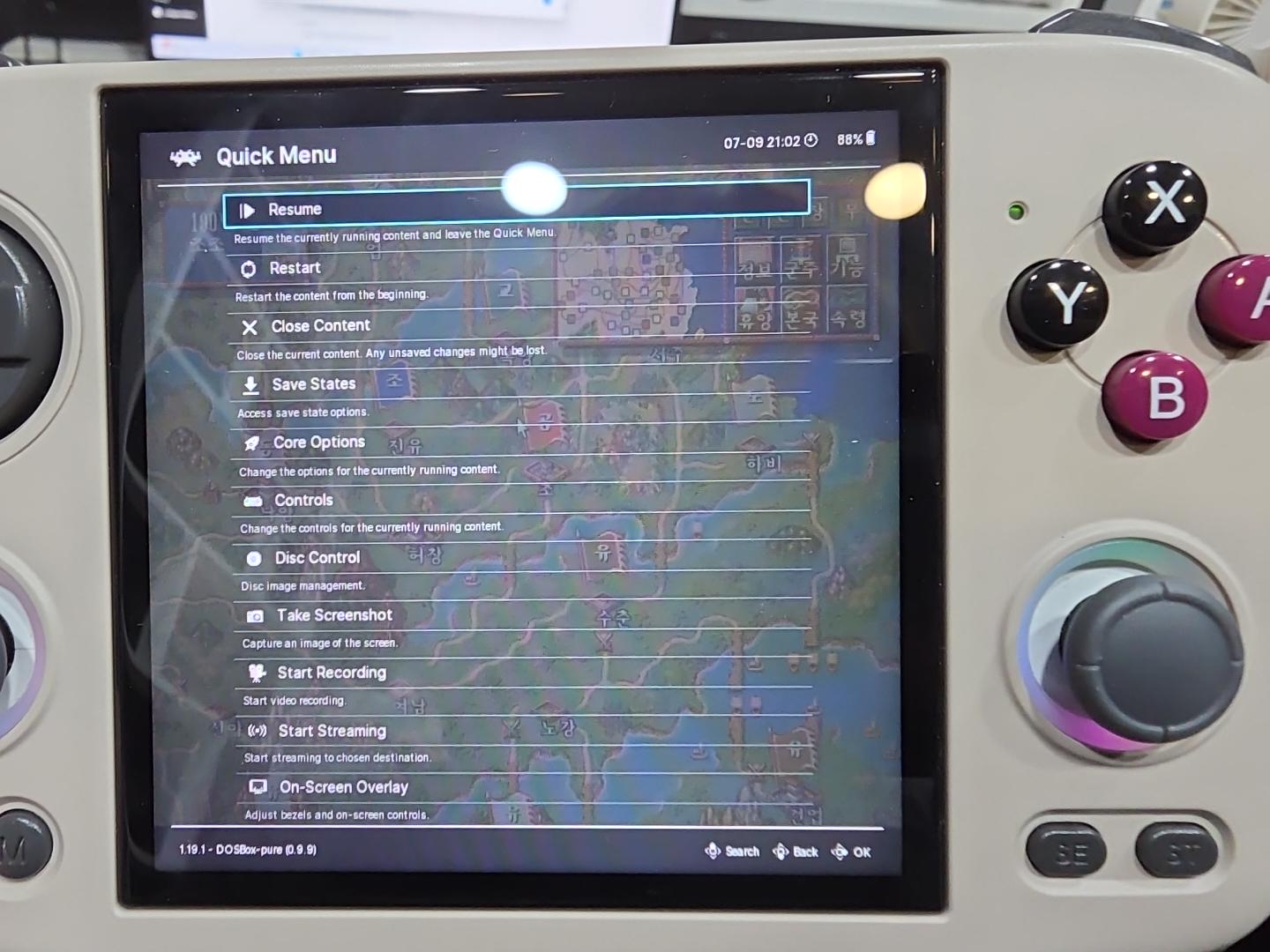
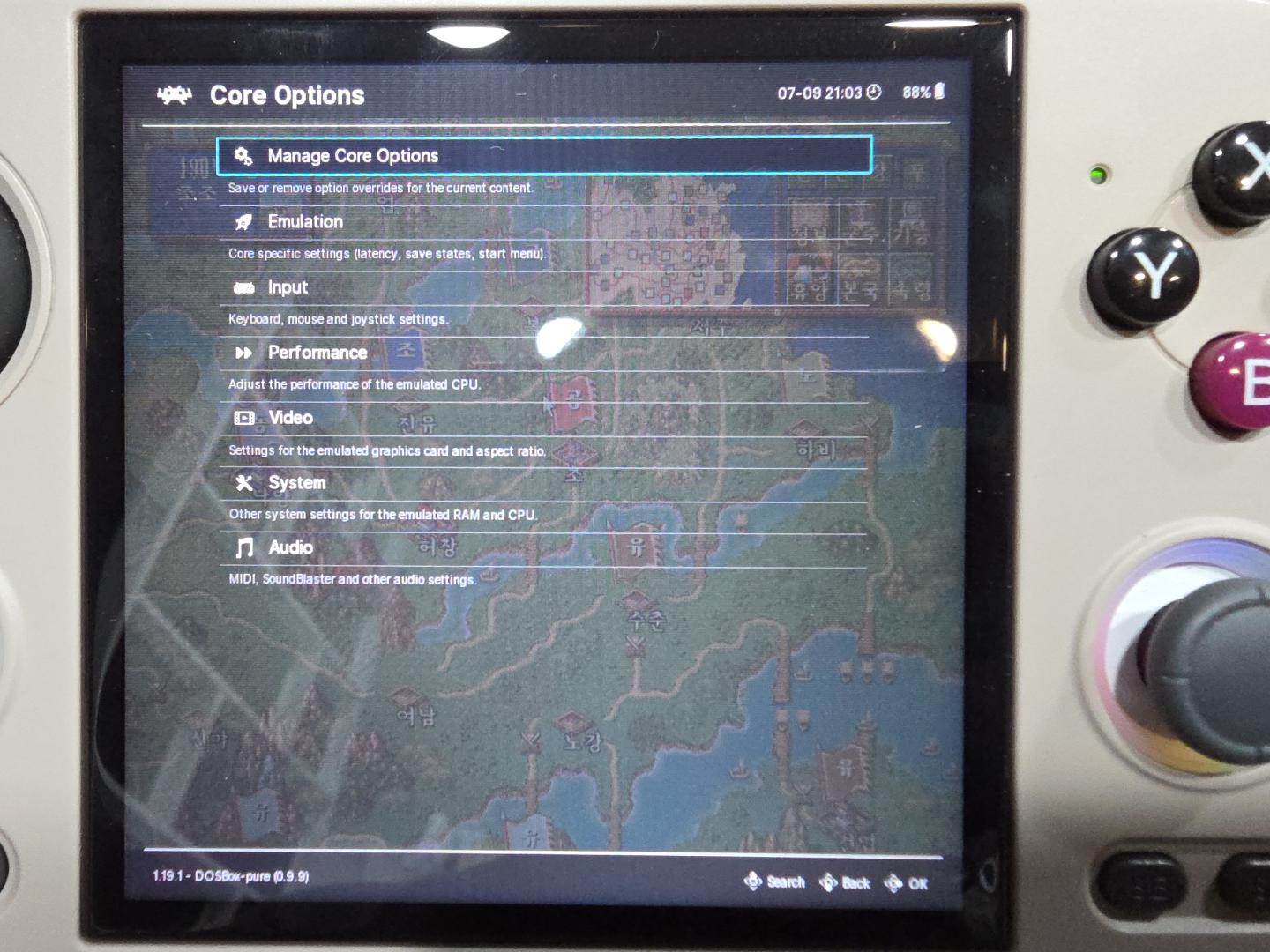
- Set Mouse Sensitivity to 20%.
- Set Joystick Analog Deadzone to 15%.
- Set Horizontal Mouse Sensitivity to 100%.
- Return to the game and test the cursor on small buttons or narrow menu targets.
Some DOSBox Pure options may appear with an Advanced > prefix when advanced options are visible. Labels can also differ with RetroArch language, menu driver, customization, restricted UI, or a later software version.
How to Open the Quick Menu with M+B
On the tested Firefly setup, pressing M+B while the game was running opened the RetroArch Quick Menu. The default Firefly controller mapping assigns hotkey plus the south face button to RetroArch’s menu toggle; KNULLI documentation also describes Function/south and M/Menu/B button terminology.
If M+B does not work, check whether the hotkey or face buttons were remapped. A restricted RetroArch interface can also change menu access.
Save the Settings for This Game Only
To avoid forcing the same values on every DOS game, use the workflow below. For a fuller walkthrough, see how to save DOSBox Pure settings for one game.
- Open Quick Menu.
- Select Core Options.
- Open Manage Core Options.
- Select Save Game Options.
RetroArch 1.19.1 uses a game-specific Core Options path in this form:
<config>/<core>/<content-basename>.opt
During the test, Manage Core Options showed this active game-specific filename:
삼국지4pk.opt
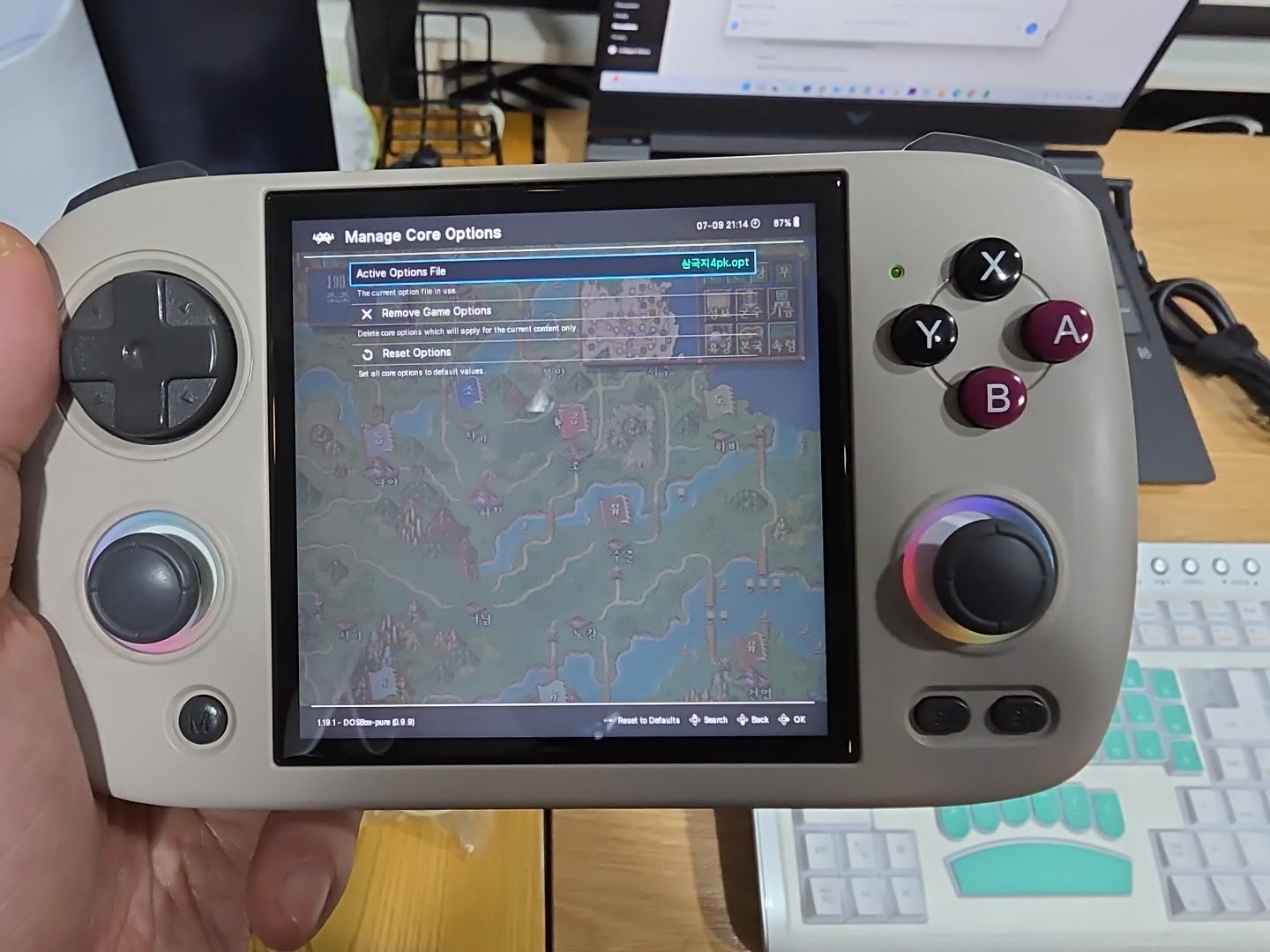
That observation is consistent with RetroArch’s content-basename naming. The displayed filename does not prove which values were stored inside the file.
Do Not Confuse .opt, .cfg, and .rmp
.opt: Core Options, including the DOSBox Pure input settings discussed here..cfg: RetroArch frontend configuration overrides..rmp: Input remaps created through the Controls/remap system.
For choosing between mapper and remap layers, see DOSBox Pure keyboard and gamepad controls.
For this per-game Core Options setup, use the game-specific .opt workflow. A .cfg override or .rmp remap is not the same thing.
Verification: Check Precision, Drift, and Persistence
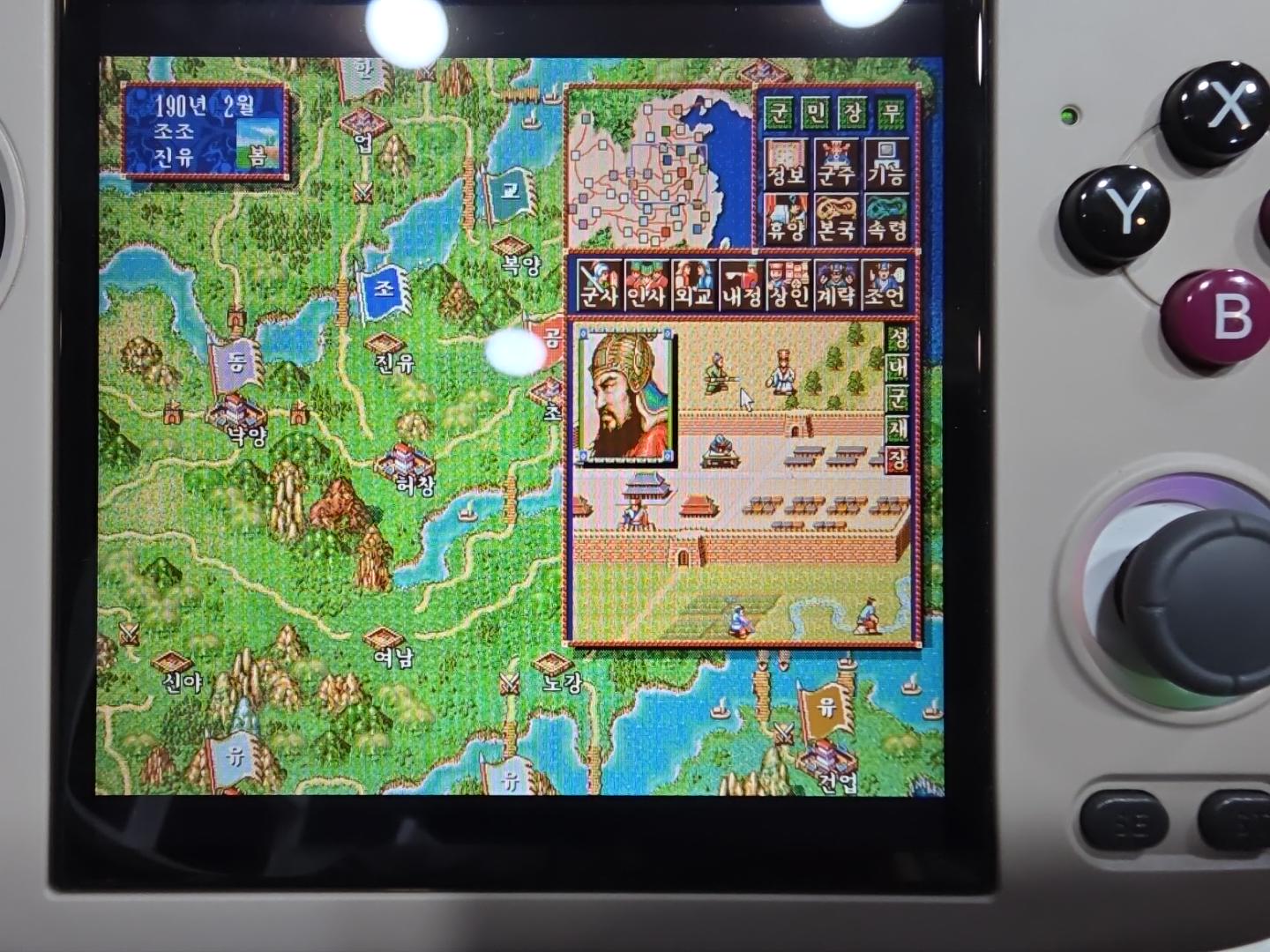
After applying the settings:
- Move the stick only slightly and check whether the cursor is easier to place on a small target.
- Release the stick and check whether the pointer remains still instead of creeping from centered input.
- Compare horizontal and vertical movement. At Horizontal Mouse Sensitivity 100%, no additional X-axis adjustment is introduced.
- Check that the cursor can still cross the screen at a practical speed.
- Close and relaunch the game.
- Reopen Core Options → Input and confirm the intended values remain active.
- If you saved game options, open Manage Core Options and confirm that a game-specific options file is active.
In the exact test environment, the 20% / 15% / 100% combination made fine cursor control significantly easier.
When These Settings May Not Suit Your Setup
Adjust rather than copy the values blindly if:
- A different DOS game expects faster mouse movement.
- Your stick has more or less physical drift.
- You use another handheld or an external controller.
- Your KNULLI, RetroArch, or DOSBox Pure version differs.
- Horizontal and vertical movement do not feel balanced.
- You use a physical mouse rather than the analog virtual mouse.
If 20% feels too slow, increase Mouse Sensitivity in small steps. If the pointer moves while the stick rests, raise the deadzone slightly. If small deliberate movements are ignored, reduce the deadzone. Change one setting at a time and retest.
FAQ
What is the best DOSBox Pure mouse sensitivity for RG CubeXX?
There is no single best value for every game. Mouse Sensitivity 20% was an effective tested starting point for Romance of the Three Kingdoms IV in the stated Firefly environment.
Does Joystick Analog Deadzone slow the cursor?
Not directly in the way Mouse Sensitivity does. It ignores the centered stick region and rescales the remaining range. Its main role is controlling drift and unintended centered input.
Should Horizontal Mouse Sensitivity also be set to 20%?
Not necessarily. It remained at 100% in the tested setup, meaning no additional horizontal adjustment was introduced. Overall Mouse Sensitivity already affects both axes.
Can I save these settings for only one DOS game?
Yes. Use Core Options → Manage Core Options → Save Game Options. In RetroArch 1.19.1, this writes and activates a game-specific .opt file based on the content basename.
Is an .opt file the same as a RetroArch override?
No. An .opt file stores Core Options. A .cfg file is used for frontend configuration overrides, while an .rmp file stores input remaps.
Why do my menu labels look different?
Labels and visibility can vary with RetroArch language, menu driver, advanced-option visibility, customization, restricted UI, and software version.
What if M+B does not open the Quick Menu?
Check whether the controls were remapped or the RetroArch interface is restricted. M+B worked in the test and matches the default Firefly mapping, but customized setups can differ.
Sources and Version Scope
DOSBox Pure 0.9.9
These tagged-source links support the definitions and processing of overall mouse sensitivity, horizontal X-axis adjustment, sensitivity variables, and analog deadzone/virtual-mouse input:
- DOSBox Pure 0.9.9 core option definitions
- DOSBox Pure 0.9.9 analog and deadzone options
- DOSBox Pure 0.9.9 sensitivity variables
- DOSBox Pure 0.9.9 virtual-mouse input processing
RetroArch 1.19.1 and Libretro documentation
These version-tagged sources support game-specific Core Options path creation, Save Game Options behavior, menu labels, frontend configuration handling, and special extensions. The Libretro guide documents overrides conceptually and may reflect maintained documentation beyond 1.19.1:
- RetroArch 1.19.1 Core Options path handling
- RetroArch 1.19.1 game-options save handling
- RetroArch 1.19.1 English menu labels
- Libretro configuration override documentation
- RetroArch 1.19.1 configuration loading
- RetroArch 1.19.1 special file extensions
KNULLI Firefly 2024/12/04
The tagged distribution sources and Firefly release page scope the controller mapping to the tested release. KNULLI’s maintained documentation supports current terminology and shortcut descriptions, but later revisions may differ from Firefly:
- KNULLI Firefly controller mapping: hotkey definitions
- KNULLI Firefly controller mapping: menu toggle
- KNULLI hotkey shortcuts
- KNULLI basic inputs
- KNULLI Firefly release
Source-count note: the authoritative request says “all 12” URLs but supplies 15 distinct URLs: 4 DOSBox Pure, 3 RetroArch game-options/menu, 3 file-type/configuration, and 5 KNULLI links. All 15 supplied URLs are preserved above.